
The Origin of USB
Before USB, computers had multiple ports for different tasks. Other accessories might have used serial ports or separate interfaces, while printers and keyboards used parallel ports or PS/2 interfaces. These factors made computer configuration complex, especially for beginners. USB standardized the connections of computer peripherals. The design simplified the connection and use of devices and reduced the complexity of interfaces. Compatible operating systems can automatically detect many plug-and-play devices, thereby simplifying the use of USB. Importantly, USB has never been just a plug. It is a set of technical standards that encompass communication, power supply, and other functions. This distinction is becoming increasingly important as technology continues to develop.
USB Replaces Older Interfaces
USB quickly became popular on desktops and laptops due to its ease of use and versatility. More and more devices are equipped with USB ports, and accessory manufacturers have brought products to market such as keyboards, mice, printers, cameras, and storage devices. Due to the widespread adoption of USB, older interfaces gradually became obsolete in daily use. This transition did not happen overnight. For years, computers were equipped with both USB and traditional interfaces. Eventually, USB became the standard interface for many accessories. The universal interface, higher communication speeds, and greater power supply capacity of USB ensured that it surpassed earlier interfaces. The success did not stem from a single feature but from continuous research and development.
USB Versions Became Faster
One of USB’s biggest changes was its increasing data-transfer performance. Early USB standards were suitable for basic peripherals, but later generations became capable of handling much larger amounts of data.
| USB Generation | Common Maximum Theoretical Speed | Typical Use |
|---|---|---|
| USB 1.x | Up to 12 Mbps | Basic peripherals |
| USB 2.0 | Up to 480 Mbps | Keyboards, mice, printers, and basic storage |
| USB 3.x | Several Gbps, depending on specification | External drives and high-speed peripherals |
| USB4 | Up to 40 Gbps or higher in newer versions | High-speed storage, displays, and advanced connectivity |
These figures describe theoretical maximum speeds, not necessarily what users experience. Actual performance depends on the device, cable, port, controller, operating system, and workload. A fast computer port cannot enable a slow external drive to transfer data at the port’s maximum rate.
Port Shapes and USB Connectors
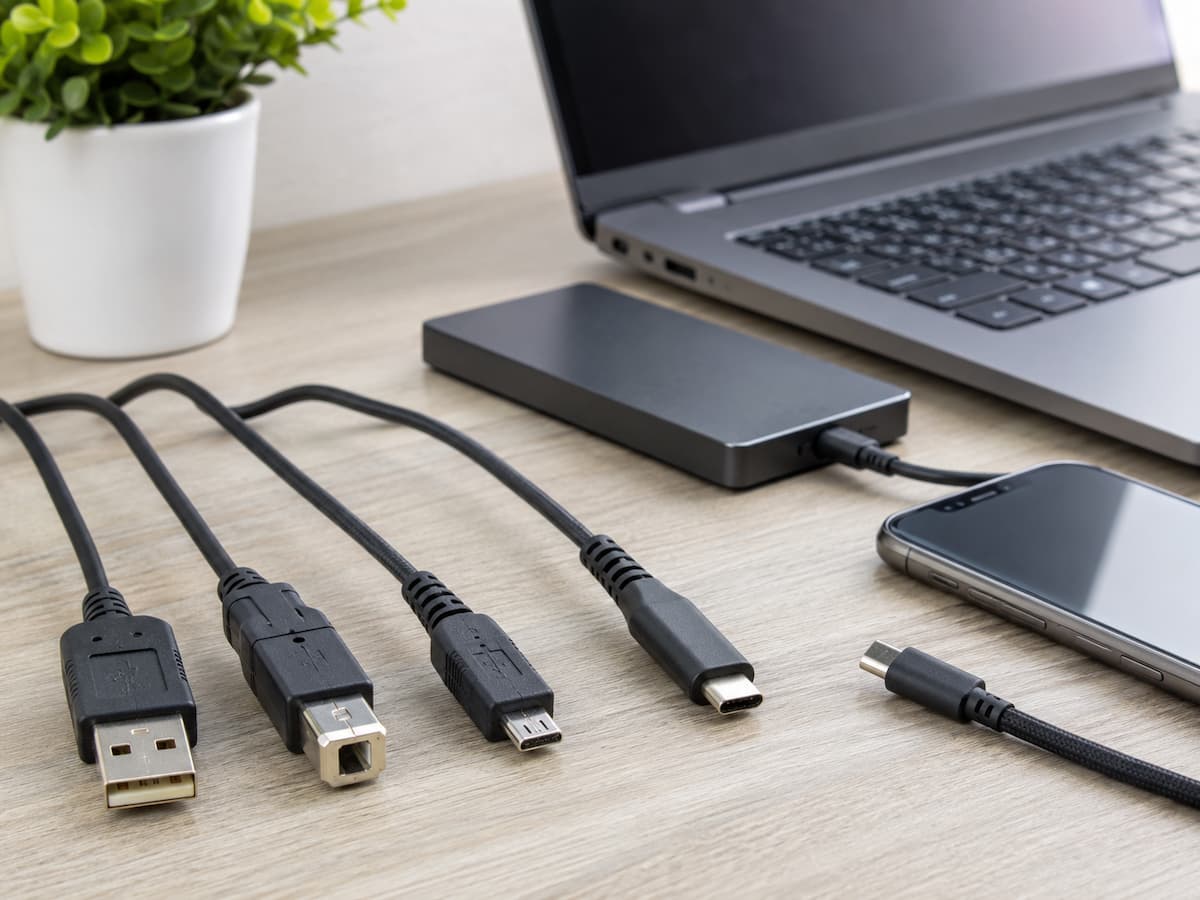
Throughout history, USB technology has used various connector designs. Rectangular USB-A connectors are common in older PCs. Printers and other large peripherals use USB-B connectors. Micro-USB and mini-USB connectors were more common in early cameras, mobile phones, and other devices. Cable compatibility depends on the connector. However, the shape of the connector does not always indicate its technological capabilities. USB-C is merely a connection method; it does not guarantee data transfer speeds, charging capacity, or video output functionality.
How USB-C Changed My Experience
USB-C features a compact, reversible design. This solved a major problem with early USB-A connectors: orientation issues. USB-C is widely used in mobile phones, tablets, laptops, monitors, storage devices, and docking stations. Its versatility reduces the number of physical connectors users carry around. USB-C compatibility is much more complex than it seems. Two USB-C ports can function very differently. One USB port might only support simple USB data transfer, while another supports high-speed data transfer, USB Power Delivery charging, and video output.
USB for Data, Charging, and Video
USB no longer limits its functionality to file transfer. Modern USB connections, in combination with suitable devices, can supply power and transmit video signals. This makes the USB-C interface extremely useful in laptops and docking stations. A docking station can be connected to a compatible laptop with just one USB-C cable. One cable can provide charging, external storage, network connectivity, and video output. The laptop, the docking station, the cable, and the relevant standards determine the functionality.
| Task | What to Check |
|---|---|
| File transfers | USB generation and device speed |
| Charging | Power requirements and USB Power Delivery support |
| External monitors | Video output support on the port and cable |
| External SSDs | Drive, computer port, and cable speed |
Why USB Naming Is Confusing
USB device naming has changed several times, and marketing terminology does not always provide useful information. USB 3.2 and USB 4 define technical functions, while device packaging often uses speed designations.
It is safest to focus on your actual needs. When transferring large video files quickly, check the specified data transfer speeds of your computer’s USB port, storage device, and cable. When charging your laptop, also check the power requirements. Check if your monitor’s port supports the required display technology. Do not assume that all USB-C cables work the same way. Interfaces may look the same, but their functions can differ.
Choosing the Right USB Cable
First, determine what you want to use the cable for. Keyboard cables are different from cables used to power laptops or connect high-speed external SSDs.
- Check the interfaces of both devices.
- Determine your data transfer speeds.
- Check the charging or power requirements. If you want to connect a monitor, check if it offers video support.
- Choose a cable with a clearly defined function.
A common mistake is choosing the cheapest cable based purely on the shape of the connector. For simple charging or low-speed devices, this type of cable might be sufficient, but it can compromise performance for demanding applications.
Avoiding Common USB Mistakes
Confusing physical compatibility with functional compatibility is a common misconception. A perfectly working cable may not provide sufficient transfer speed or power. Assuming that a newer-looking interface guarantees faster performance is another misconception. Users should not immediately attribute slow transfer speeds to the cable. External hard drives or outdated USB controllers can also affect performance. Test the entire connection to identify bottlenecks. Properly remove external hard drives when the operating system recommends removing important storage devices. Avoid suddenly bending cables, forcing them into ports, or using damaged cables. The
Future of USB
USB continues to improve because PCs and mobile devices require faster data transfer and power delivery. Faster USB standards are crucial for external SSDs, professional media editing, high-resolution displays, and docking stations. More importantly, the evolution of USB is not just about changing the interface. As computer technology has developed, USB has remained relevant. Users must realize that the name “USB” is not complete in itself. All ports, cables, devices, and supported specifications must function properly.
Conclusion
USB continues to evolve after replacing many older computer interfaces. It has evolved from simply connecting external devices to faster data transfer speeds, a more stable power supply, and broader support for modern devices. USB-C simplifies the physical connection even further but also makes it even more important to understand the differences between the interface form and the technical performance.
For the average user, the most practical advice is simple: do not judge a USB interface solely by its appearance. Check the port, the cable, the device, the transfer speed, the power requirements, and the supported features. Once you understand these differences, choosing the right USB device becomes much easier, and common compatibility issues can be avoided.
FAQs
1. Are USB-C and USB4 the same?
No. USB-C refers to the physical interface, while USB4 refers to the specification of the USB technology. USB-C ports or cables can support different USB versions and features. Always check the specifications; do not assume that a USB-C connection delivers USB4 performance by definition.
2. Why is transferring files with my USB device so slow?
The slowest component in the connection can limit the transfer speed. This could be a problem with the USB port, the cable, the storage device, or the computer controller. The nominal maximum speed is a theoretical value, so the actual transfer speed is usually lower. Before replacing the cable, verify the specifications of each component in the connection.
3. Can all USB-C cables charge a laptop?
No. Charging a laptop depends on the laptop’s requirements, the charger’s performance, the cable’s specifications, and whether it supports the USB Power Delivery (USB PD) protocol. Some USB-C cables are primarily intended for basic charging and data transfer. Use chargers and cables compatible with laptops and ensure they explicitly support the required power level.
4. Does a newer USB version always mean faster file transfer speeds?
Not necessarily. Newer USB specifications may support higher speeds, but the actual transfer speed depends on the entire system. If you connect an older external drive to a very fast USB port, the drive itself can still be the bottleneck.
5. Why do some USB-C ports support displays and others do not?
USB-C is a connector format, not a guarantee of full functionality. Some USB-C ports support video signals via compatible technologies, while others are primarily used for data transfer and charging. Consult the manufacturer’s specifications for more information regarding your specific device.
6. Are expensive USB cables always better?
Not necessarily. Price alone does not guarantee compatibility or performance. The best cables are those that meet your actual needs in terms of speed, power, and functionality. A standard cable might be perfectly suitable for a keyboard, while a fast SSD or laptop might require a more powerful cable.